
Read a tender page
Where to find what matters in a notice: buyer, deadline, documents, amendments and, above all, how to respond.
A tender page answers three questions: what is it, should you respond, and how. Here is where to find each answer without reading the whole notice.
At the top: the essentials
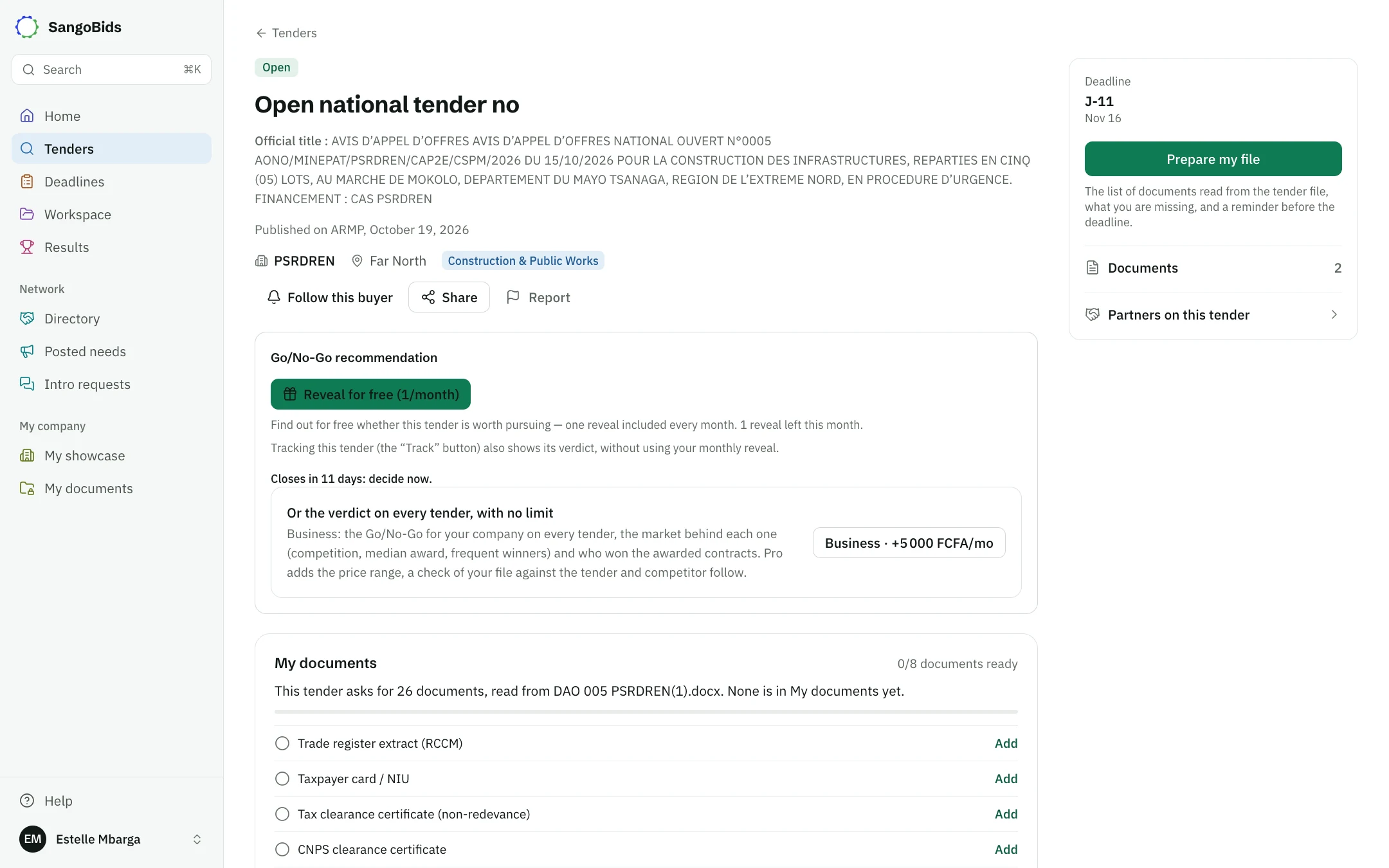
Computer
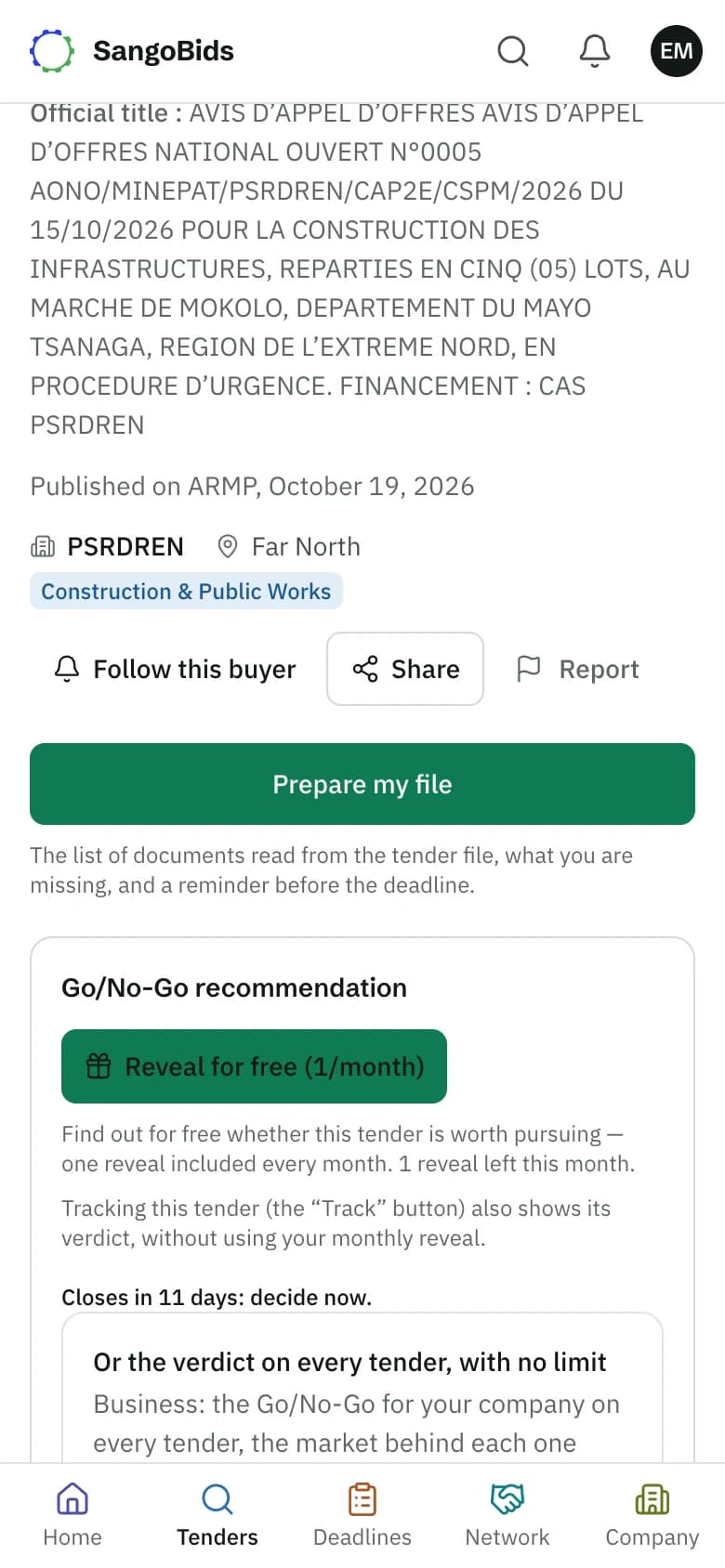
Phone
- The title is rewritten to read fast. Just below, Official title gives the notice's own wording, to quote in your letters.
- The source and publication date.
- The buyer, region and sector. Tap the buyer to see its page. Follow this buyer tells you about its next notices.
- The deadline, with the days left.
Share sends the tender to a colleague. Report tells us if the notice contains an error.
Should you respond?
Under the header, the verdict card gives you a verdict and its reasons, and My documents lists the pieces you are missing. An automatic summary says in a few lines what the buyer is asking for. The verdict has its own article: The Go/No-Go verdict.
How to respond
This is the most useful block on the page. It gives the steps for this particular tender.
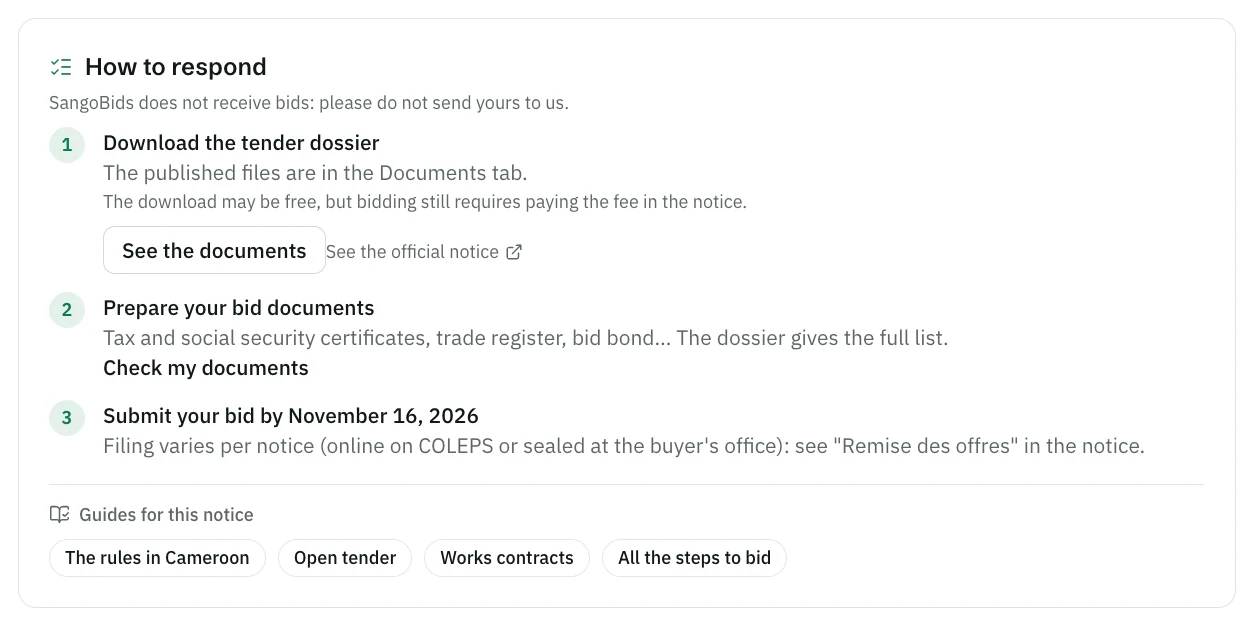
Computer
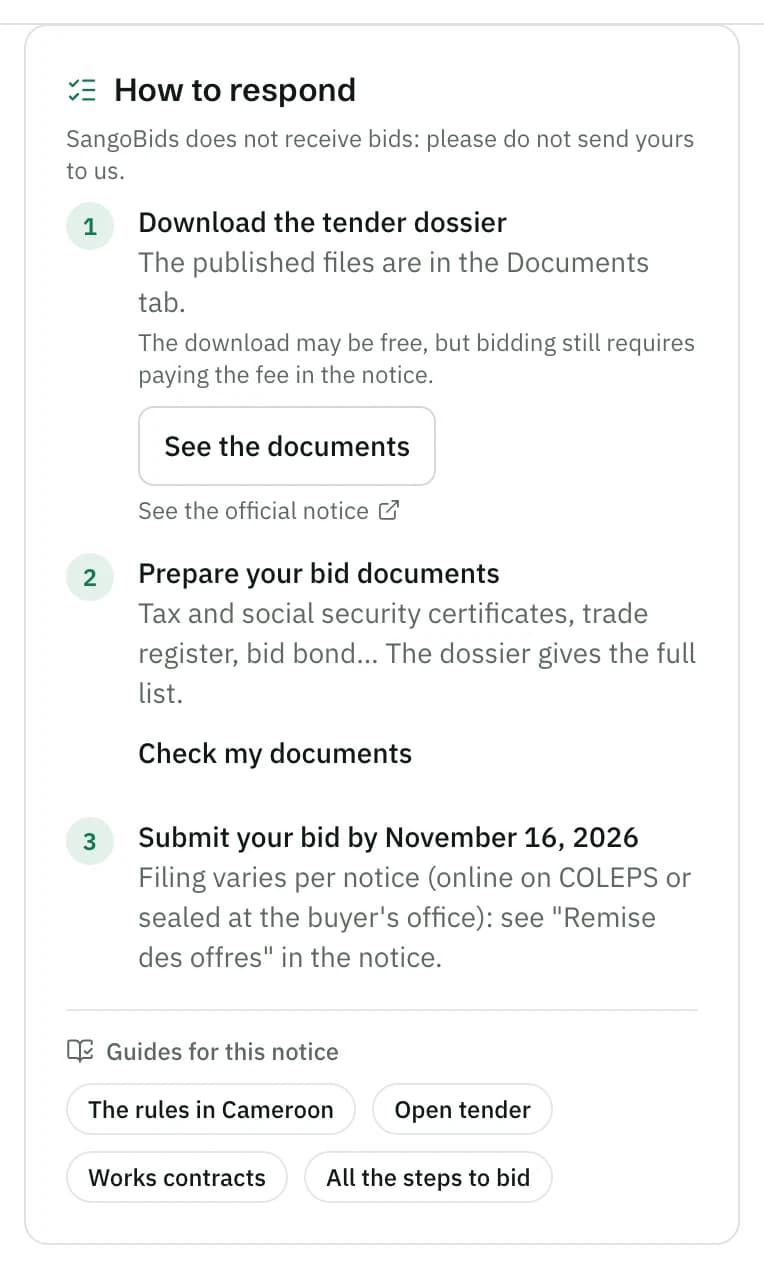
Phone
Get the tender file
The block says where it is: in the Documents tab, at a collection address, or on the official page. See the official notice opens the source.
Prepare your documents
Check my documents compares what is required with your documents.
File your offer
The deadline and the place of filing, as the notice gives them. When known, the bid-opening date is added.
Guides for this notice points to the rules of the country or donor and to the type of contract.
The tabs
Computer
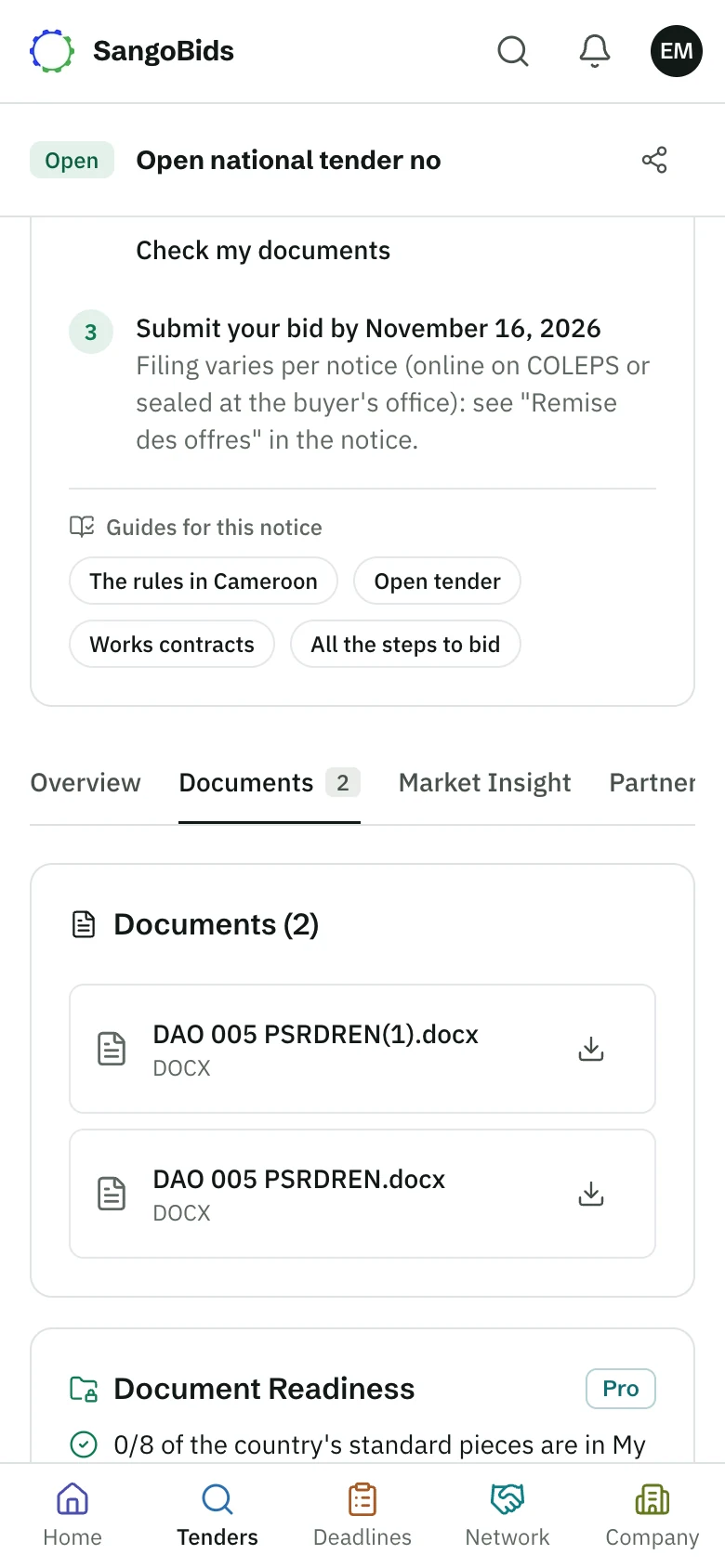
Phone
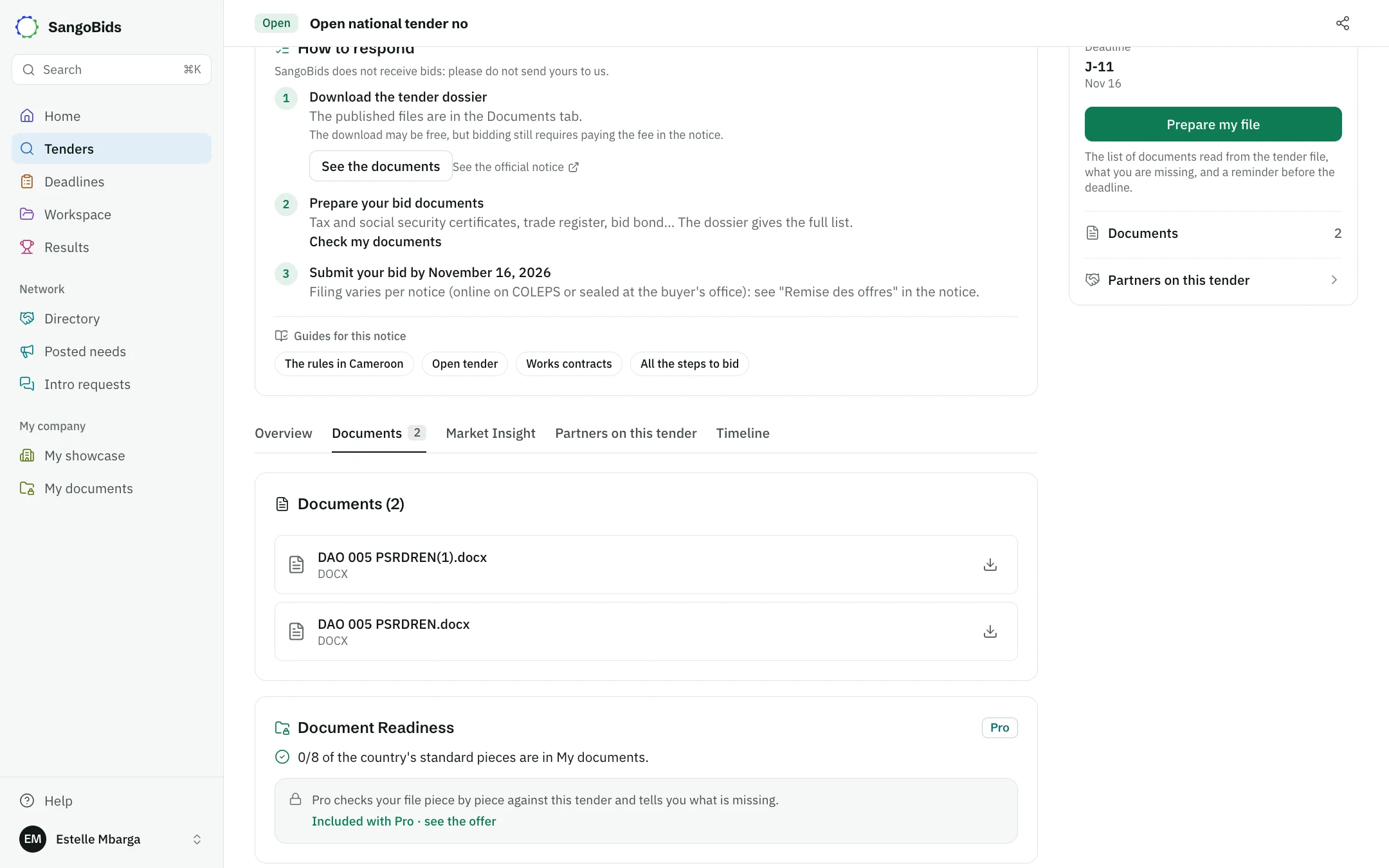
- Overview: the text of the notice and its details.
- Documents: the files to download, free on every plan.
- Market Insight: what the buyer and the sector awarded before.
- Partners on this tender: companies available for this tender.
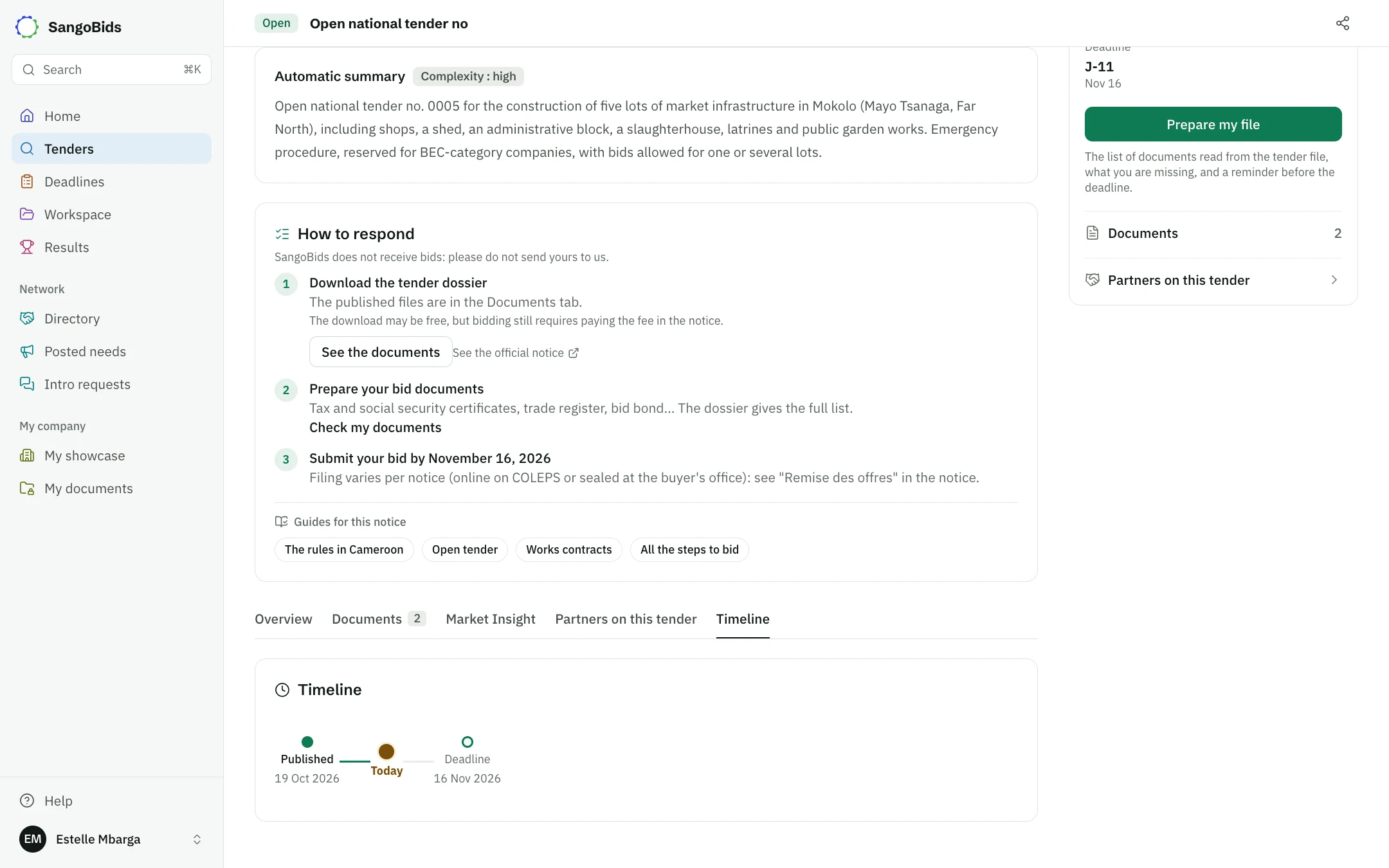
- Timeline: publication, deadline and opening on one line.
- Amendments: appears only if the notice was changed. Read it before filing, as it can change the date or the documents.
Computer
Take action
Prepare my file tracks the tender: it joins your deadlines with a reminder 3 days and then 1 day before the deadline, and opens the file where you gather your documents.
What SangoBids does not do
SangoBids receives no offers. Do not send us yours: file it where the notice says. If anything differs, the official notice and the tender file prevail.
Next
See The Go/No-Go verdict, Track your deadlines and Prepare your submission file.
Read next
Ready to try?
The account is free and public tenders stay free. Three minutes is enough to receive the first ones.
Get started free